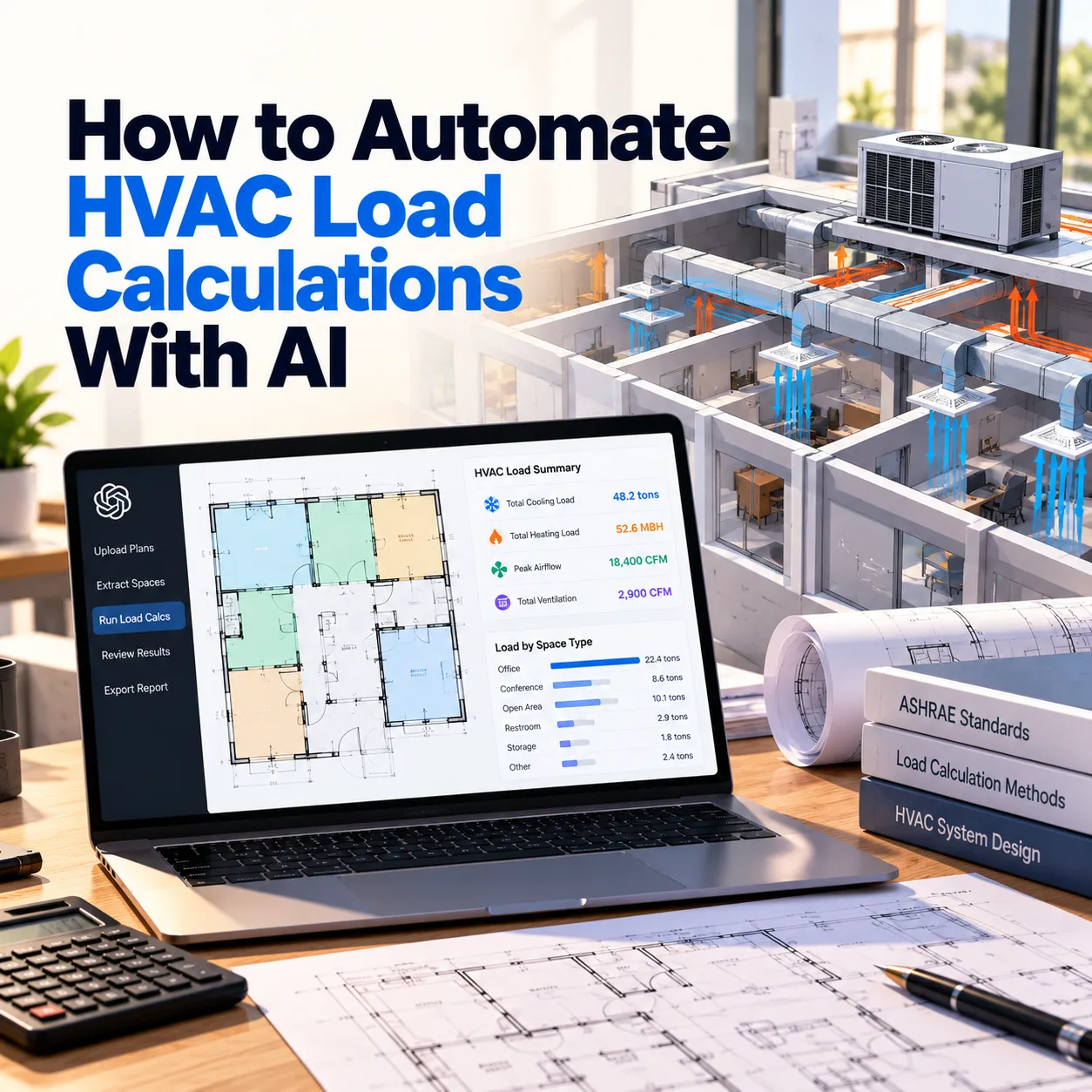
Automating HVAC load calculations with AI reduces the manual, error‑prone work of gathering room dimensions, window data, orientation, and other inputs, letting designers focus on equipment selection and compliance.
Introduction
A house's cooling load can change by 25% or more if the house is rotated 90 degrees on its lot, even with the same square footage, insulation, and windows.
Square-foot sizing rules, usually 400 to 600 square feet per ton, miss that entirely. They don't account for orientation, window area, insulation, or air leakage. A Manual J load calculation does, but collecting and entering those details takes hours per job, which is why many contractors still size by rule of thumb during busy weeks.
AI can handle most of that input work. The calculation itself should stay in your load calculation software, while AI reads plans, collects and checks inputs, reviews the results, and keeps Manual J, Manual S, and Manual D consistent when plans change.
What Is a Manual J Load Calculation?
A Manual J load calculation is the ACCA procedure for estimating how much heating and cooling a home needs, room by room. It uses the home's orientation, windows, wall and ceiling assemblies, air leakage, duct location, occupants, and local design temperatures to produce heating and cooling loads in BTUs per hour.
Load calculation software runs the math in seconds. The two to four hours commonly quoted for a residential Manual J are spent on the work around it:
- Reading or measuring room dimensions
- Finding window sizes and ratings in the schedule and elevations
- Matching wall sections to R-values
- Looking up design conditions for the location
- Entering everything into the software
- Updating inputs when plans change
Almost all of that time goes into gathering and entering inputs, so that's where automation saves the most hours.
Can AI Do HVAC Load Calculations?
AI should prepare and check the inputs for a load calculation, but the calculation itself belongs in established load calculation software built on the ACCA Manual J procedure. Building departments that require Manual J expect a report from that software. A load figure produced directly by a language model can't be reproduced reliably or defended to an inspector.
In the workflows we build at Octopus Builds, responsibilities split three ways:
- AI: reads plans and documents, extracts values, flags gaps and conflicts, fills the software, reviews outputs, and assembles the permit package
- Load calculation software: runs the Manual J calculation
- Your designer: sets assumptions and setpoints, chooses equipment, accounts for site conditions that aren't on the plans, and signs off on the load report
Which Load Calculation Inputs Cause the Most Errors?
Five inputs account for most incorrect loads. Each one needs its own check.
Orientation
Orientation sets the solar exposure for every wall and window. If the north arrow is misread, or the house is entered facing the street instead of true north, every window in the calculation gets the wrong sun exposure.
What AI checks: reads the north arrow and site plan, assigns a direction to each exterior wall, and flags plans where orientation is missing or conflicting. If a plan has no orientation, the workflow raises a question for the designer instead of assuming one.
Windows
Windows have more effect on cooling loads than almost any other input. Window data usually sits in three places: the window schedule, the elevations, and the NFRC labels or specs listing U-factor and SHGC. These sources often disagree.
What AI checks: combines all three sources into one window list, matches each window to its wall and orientation, and flags conflicts. For example, a 3'-0" × 5'-0" window on the schedule may be drawn as 3'-0" × 6'-0" on the elevation. Missing SHGC values are flagged so the software doesn't fill them with defaults.
Infiltration
Infiltration is the air leakage assumption, and it often stays on the software default. On a tight new build, a default meant for a leakier house increases the calculated load and can push the equipment up a size.
What AI checks: compares the infiltration input with the construction type and with any blower door target or test result in the energy documents. A tight-envelope specification paired with a high infiltration entry is a strong sign of oversizing.
Duct location
Ducts in an unconditioned attic or vented crawlspace add heat gain and loss that doesn't show up in any room on the plan.
What AI checks: reads the duct and air handler location from mechanical plans or field notes, and holds the calculation until duct location is entered.
Design conditions
Outdoor design temperatures come from ACCA Manual J Table 1A for the job's location. A job saved under the wrong city, or left on a template's default location, uses the wrong weather data from the start.
What AI checks: matches the job address to the correct design location and flags any mismatch with the permit address.
How to Automate HVAC Load Calculations Step by Step
Step 1: Extract inputs from plans and energy documents
For new construction and additions, most inputs are already in the drawing set and energy compliance documents. AI pulls them into one record and keeps a source reference for every value.
| Input | Source document | Extracted result |
|---|---|---|
| Room areas and ceiling heights | Floor plans, sections | Room-by-room geometry |
| Exposed wall lengths | Floor plans with orientation | Wall lengths by direction |
| Windows and doors | Window schedule, elevations, NFRC data | A single reconciled window list |
| Assembly R-values | Wall sections, REScheck or other energy reports | Wall, ceiling, floor, and foundation values |
| Occupants | Bedroom count on the floor plan | Internal gains, using Manual J's bedrooms-plus-one rule |
| Duct and equipment location | Mechanical plans, notes | Duct loss inputs |
Tip: when the window schedule and elevations disagree, flag the conflict instead of choosing one value. The architect usually needs to resolve it anyway.
Step 2: Capture field inputs on replacement jobs
Most residential load calculations are done on existing homes, which usually have no plans to read.
| New construction and additions | Replacement jobs | |
|---|---|---|
| Main input source | Plans and energy documents | Field measurements and photos |
| Where AI helps most | Extracting and reconciling document data | Organizing field data and finding gaps on site |
| Most common error | Conflicts between documents | Measurements missed during the site visit |
A missed measurement on a replacement job often means a second trip, which costs more than the calculation itself. A field capture workflow guides the technician room by room, attaches photos of window labels, attic insulation, and equipment nameplates to each room, pulls in prior permits or blower door results when available, and confirms every room and window is recorded before the technician leaves.
Step 3: Check inputs before running the calculation
Before the calculation runs, the workflow applies the five checks above plus these completeness checks:
- Each conditioned room has an area and ceiling height
- The window count on each elevation matches the window list
- Assembly R-values match the energy compliance document
- The bedroom count matches the floor plan
Each failed check states the problem and the document the value came from.
Step 4: Send clean inputs to your load calculation software
Inputs that pass the checks go into the load calculation software through a structured import, a direct integration, or a guided entry workflow, depending on the software you use.
| Field | Example |
|---|---|
| Room | Bedroom 2 |
| Floor area | 168 sq ft |
| Ceiling height | 9 ft |
| Exposed walls | North 14 ft, East 12 ft |
| Windows | 2 × 3'-0" × 5'-0", north, U-0.28, SHGC 0.25 |
| Wall assembly | 2×6, R-21 cavity + R-5 continuous (wall section 3/A-501) |
| Source check | Window schedule and elevation A-201 agree |
| Status | Ready for calculation |
Example of a clean input record.
Source references let a designer or inspector trace any value back to the sheet it came from.
Step 5: Review the results for anomalies
Clean inputs can still produce results that need a second look. An automated review flags:
- Rooms that don't match similar rooms: a small bedroom with a higher cooling load than the living room usually points to a window or orientation error
- Results that don't fit the climate: a cooling-dominated result in a heating-dominated climate, or the reverse
- Large changes between revisions: a 15% jump after a minor plan change usually means an input changed by mistake
- Totals far outside typical ranges: square-foot rules of thumb work as a warning threshold here, not as a sizing method
Step 6: Keep Manual J, Manual S, and Manual D consistent
The load calculation feeds two more documents and the permit package:
- Manual S: equipment selected to match the calculated loads, within the sizing limits Manual S allows
- Manual D: duct design that delivers the airflow each room needs
- Permit package: the load report, equipment selection, and duct design in the format your jurisdictions accept
The International Residential Code requires heating and cooling equipment to be sized under Manual S using Manual J loads. Programs like ENERGY STAR for new homes also limit cooling oversizing, and more building departments now ask for the documentation at permit.
When plans change, the load calculation often gets updated while the equipment selection and duct design still reflect the old numbers. An automated workflow re-runs everything downstream of the changed input and rebuilds the permit package with a record of what changed.
How to Test AI Load Calculations on Past Jobs
Before using the workflow on live bids, run it on 10 to 20 past jobs that already have reviewed Manual J reports.
| Metric | How to calculate | What it shows |
|---|---|---|
| Input match rate | Extracted inputs matching the reviewed calc ÷ total inputs | Extraction accuracy |
| Load difference | Pilot load compared with the reviewed load, per job | Whether input errors would change equipment size |
| Prep time | Minutes from receiving documents to calc-ready inputs | Time saved compared with your current process |
| Check catch rate | Known input errors caught ÷ total known input errors | How well the checks protect the calculation |
Jobs where the loads differ show which inputs need better extraction or a new check.
Build an AI Load Calculation Workflow With Octopus Builds
Most of the time in a load calculation goes into reading plans, finding missing values, re-entering data, and updating it after revisions.
Octopus Builds builds load calculation workflows around your team's process:
- Input extraction: room data, window schedules, and assembly values pulled from plans and energy documents
- Field capture for replacement jobs: structured forms and photos organized into calculation-ready inputs
- Input and output checks: your rules for missing, conflicting, and unusual values
- Software integration: clean inputs sent to the load calculation software you already use
- Connected documents: Manual S, Manual D, and permit packages updated together when plans change
We scope engagements in about two weeks and deliver working software every two weeks after that, starting with a pilot on your past jobs. If load calculations are slowing your bids or still being sized by rule of thumb, build your load calculation workflow with Octopus Builds.
Build with Octopus Builds
Need help turning the article into an actual system?
We design the operating model, product surface, and delivery plan behind AI systems that need to ship cleanly and keep working in production.