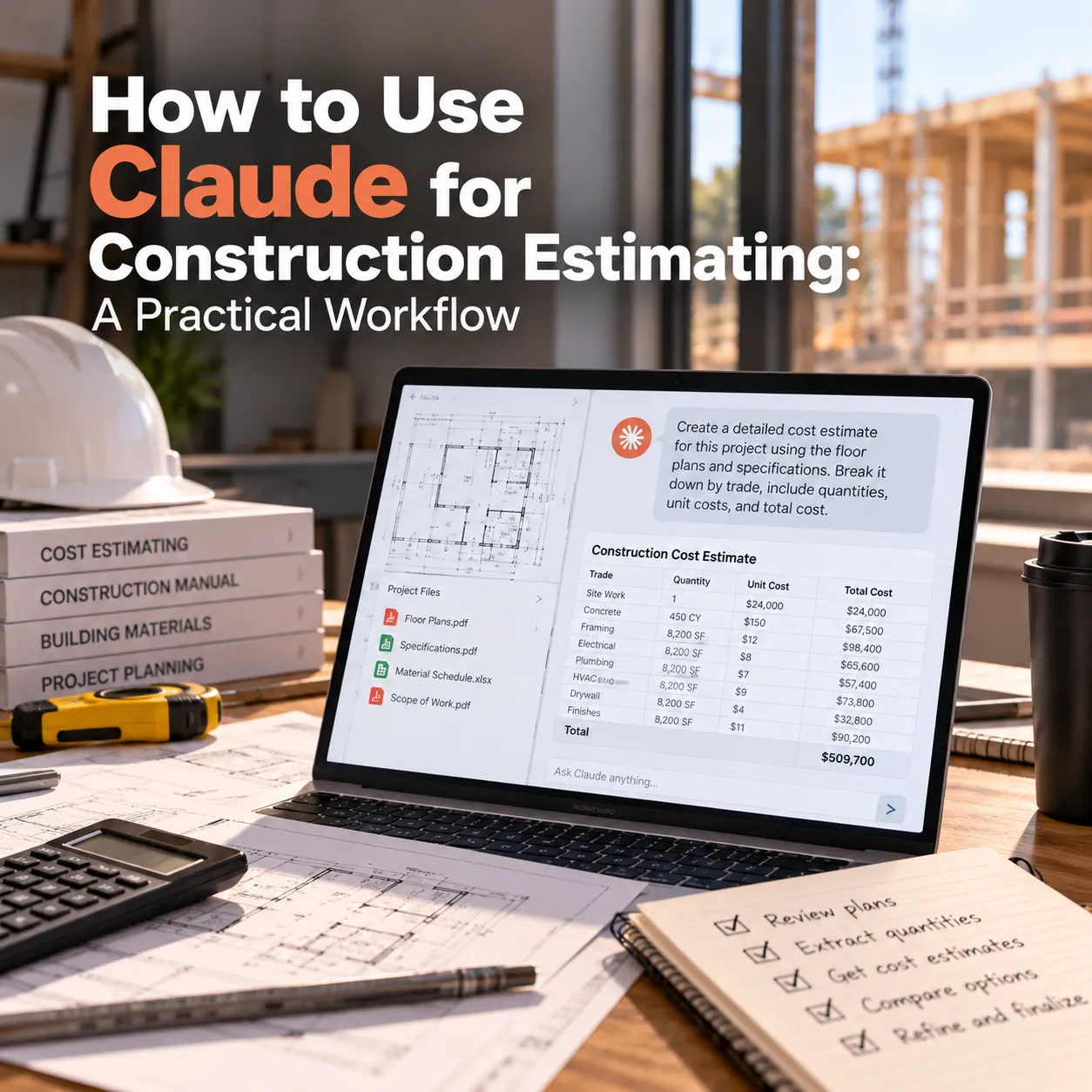
It's Friday afternoon. Bids are due Tuesday. You have a 600-page spec book, three addenda, a stack of sub quotes in five different formats, and a proposal template that still has last month's project name in the header.
Intro
Claude works best in construction estimating as a document reader and drafting assistant. Use it to review specs, compare addenda, draft RFIs, level sub quotes, check estimates, and write proposals. Keep quantity takeoff in dedicated takeoff software and keep pricing decisions with your estimators.
This guide walks through that workflow step by step, with prompts you can adapt, plus the places where you shouldn't trust it.
What Can Claude Do in Construction Estimating?
| Estimating task | How well Claude fits | Why |
|---|---|---|
| Reading specs and pulling out scope | Strong fit | Fast, thorough reading with section references |
| Comparing addenda and revisions | Strong fit | Good at spotting what changed between documents |
| Drafting RFIs | Strong fit | Turns your notes into clear, specific questions |
| Leveling sub and supplier quotes | Strong fit | Extracts and lines up pricing, inclusions, and exclusions |
| Writing proposals and exclusions | Strong fit | Drafts in your voice from your past proposals |
| Checking estimate spreadsheets | Good fit | Catches missing lines, broken formulas, and scope gaps |
| Measuring quantities from drawings | Through takeoff tools | Measured quantities should come from takeoff software, some of which connects to Claude |
| Setting price and markup | Your call | Requires market and job judgment Claude doesn't have |
Step 1: Set Up a Claude Project for Your Estimating Work
The biggest mistake estimators make with Claude is starting every conversation from scratch. Claude doesn't know your company's exclusions, cost codes, or how you write a scope letter unless you tell it.
Claude's Projects feature fixes this. A project is a workspace with its own knowledge base and instructions. Anything you upload to project knowledge is available in every chat inside that project, and project instructions shape how Claude responds.
What to put in project knowledge:
- Your standard inclusions and exclusions
- Two or three past proposals you're proud of
- Your cost code list or CSI division structure
- Scope templates for the trades you bid most
- Your RFI format
Example project instructions:
You are helping the estimating team at [Company], a commercial mechanical contractor. When reviewing specs, always cite the spec section and page number for every item you list. Use our CSI divisions from the uploaded cost code list. Never estimate quantities or prices unless asked. If you see a rate or item you don't recognize, flag it instead of guessing.
That last line matters. You want Claude to raise questions, not paper over gaps.
On Team and Enterprise plans, projects can be shared, so the whole estimating team works from the same exclusions and templates. Larger teams often go a step further and connect Claude to their cost database and past bids directly, so nobody has to keep project uploads current by hand.
Step 2: Read the Specs and Pull Out Your Scope
Spec review is where Claude saves the most time. Upload the relevant spec sections as PDFs and ask for a structured scope summary.
Example prompt:
Review the attached Division 23 specs. List every item that affects our scope or cost: equipment, materials, testing, commissioning, warranties, submittals, and special requirements. Group by spec section and include the page number for each item. Separately, list anything that seems to belong to another trade or is unclear.
Two habits make this reliable:
- Always ask for section and page references: it lets you check Claude's work in seconds, and it discourages vague summaries
- Spot-check the high-cost items yourself: extended warranties, specialty testing, and owner training requirements are where a missed line costs real money
Claude won't replace your read of the critical sections. It will make sure you know where the critical sections are.
Step 3: Compare Addenda and Revisions
Addenda are where scope quietly changes. A revised spec section can add a requirement in one sentence buried in paragraph 2.4.B.
Upload the original and revised documents together and ask Claude for a direct comparison.
Example prompt:
Compare the original Section 23 21 13 with the version in Addendum 2. List every change: additions, deletions, and modified requirements. For each change, note whether it likely increases, decreases, or doesn't affect our cost, and explain why in one line.
The cost-direction note is a quick triage tool. It helps you decide which changes need repricing before the bid and which can wait.
Step 4: Draft RFIs While You Review
As you work through specs and drawings, you'll collect questions. Instead of writing each RFI from scratch, keep rough notes and let Claude turn them into clean, specific questions.
Example prompt:
Turn these notes into RFIs using our RFI format from project knowledge. Each RFI should reference the specific drawing or spec section, state the conflict clearly, and propose our assumption if no answer is received before bid day.
Notes:
- M-201 shows 2 RTUs on the roof, schedule lists 3
- Spec says insulate all ductwork, drawings say exposed duct
- No mention of seismic bracing anywhere, project is in Zone D
Including your assumption in each RFI is a small move with a big payoff. If the answer never comes, your proposal already states how you priced it.
Step 5: Level Subcontractor and Supplier Quotes
Quotes arrive as PDFs, emails, and spreadsheets, each with its own layout and fine print. Claude can pull them into a single comparison and, with file creation enabled, produce an Excel file you can work in.
Example prompt:
Here are four electrical quotes for the same scope. Create an Excel comparison with one row per scope item and one column per bidder. Include base price, alternates, inclusions, exclusions, qualifications, and quote expiration date. Highlight any scope item that one bidder includes and another excludes.
The exclusions column is where this pays off. A low number often reflects missing scope, not a better price. Claude is good at surfacing that, especially when the exclusion sits in a two-line qualification at the bottom of page three.
Review the final comparison yourself before carrying any number. Extraction errors are rare but possible, and a wrong digit on a sub quote is expensive.
If you level quotes on every bid, the download-and-retype step adds up quickly. Teams with steady bid volume often have quote leveling built into their estimating software, so the comparison lands where the estimate lives instead of in a separate file.
Step 6: Check Your Estimate Before It Goes Out
Once your estimate is built, upload the spreadsheet along with your scope summary from Step 2 and ask Claude to look for gaps.
Example prompt:
Compare this estimate against the scope summary we created earlier. List any scope items that don't appear in the estimate. Check the spreadsheet for broken formulas, hardcoded totals, and line items with zero quantity or zero price.
If your estimates live in Excel, Claude in Excel can do this review inside the workbook itself, and it can update rates from a leveled quote without exporting anything. Because it works from the workbook, keep a short instructions tab in your template that explains where rates, quantities, and markups live.
This isn't a substitute for a second estimator's review. It's a first pass that catches the mechanical problems, so your human review can focus on pricing and risk.
The check gets far more useful when Claude can compare your estimate against your own history, not just the scope list. Flagging a line that's 20% below what you paid on similar jobs requires connecting your past job costs, which a chat window can't do on its own.
Step 7: Write the Proposal, Inclusions, and Exclusions
With your past proposals in project knowledge, Claude can draft a proposal that sounds like your company, not a template.
Example prompt:
Draft a proposal for this project using the format and tone of our past proposals. Use the scope summary, the RFI assumptions, and our standard exclusions. Add project-specific exclusions based on the gaps we identified. Leave all pricing fields as [PRICE] for me to fill in.
Keeping prices out of the draft is deliberate. It keeps the numbers in your hands and avoids a stray figure from a past proposal slipping into the new one.
Step 8: Turn Your Best Prompts Into Claude Skills
Once a prompt works well, you'll want it every time without retyping it. Claude Skills package instructions, templates, and step-by-step processes that Claude follows whenever the task comes up.
Good candidates for estimating skills:
- Spec review skill: your scope categories, citation rules, and output format
- Quote leveling skill: your comparison layout and the exclusions you always check
- Estimate review skill: the gaps, formula checks, and risk flags you want on every bid
- Proposal skill: your structure, tone, and standard language
Keep scope extraction and pricing in separate skills. It mirrors the rule from the start of this guide, and it makes each skill easier to test and trust.
Can Claude Do Quantity Takeoffs?
Not reliably on its own. Claude can describe what's on a drawing, read schedules, and pick up notes and callouts, but measured quantities need software built for scale, symbols, and counts.
That line is starting to blur. Some takeoff platforms now connect to Claude as connectors, so you can ask Claude to run a takeoff and the measurements come from the takeoff engine underneath. That's a useful setup, as long as you treat the quantities like any other takeoff and verify them before pricing.
Should You Use Claude or Claude in Excel for Estimating?
Most estimators end up using both.
| Use Claude when you're... | Use Claude in Excel when you're... |
|---|---|
| Reading specs, addenda, and quotes | Working inside an existing estimate workbook |
| Drafting RFIs and proposals | Updating rates and checking formulas |
| Leveling quotes into a new comparison | Reviewing totals and line items in place |
| Working from project knowledge and skills | Keeping your template and structure intact |
A simple split: documents in Claude, numbers in Claude in Excel.
Where Claude Falls Short in Estimating
Claude is a strong assistant, but there are clear limits estimators should respect:
- Pricing judgment: markup, risk contingency, and how sharp to be on a bid depend on market conditions, your backlog, and the client, none of which Claude knows
- Current material prices: use your supplier quotes and pricing database, not a general answer about what copper or steel costs
- Confident mistakes: Claude can occasionally misread a document or fill a gap with a plausible answer, which is why section references and spot checks matter
- Confidential documents: check your company's policy and your Claude plan's data settings before uploading client drawings and specs
Many firms handle these gaps by pairing a dedicated takeoff tool with Claude-powered scope review and quote leveling, all feeding one estimate. Connecting those pieces is most of what an estimating automation project involves.
Tips That Make Claude More Reliable for Estimators
- Ask for sources every time: section numbers, page numbers, and quote line references make verification fast
- Tell it to flag, not guess: "if unclear or unrecognized, list it as a question" is the single most useful instruction you can give
- Separate scope from pricing: extract and confirm scope first, then price it
- Work in smaller chunks: one division or one trade at a time produces sharper results than an entire spec book at once
- Keep project knowledge current: update exclusions and templates when they change, or Claude will keep using the old versions
Build Your AI Estimating System With Octopus Builds
The workflow above runs on uploads and copy-paste, and that's fine for a few bids a month. As volume grows, the friction moves from reading documents to moving them around: specs uploaded by hand, comparisons retyped into your estimating software, and years of past bids sitting in folders Claude never sees.
Octopus Builds turns that workflow into a system built around how your team bids: bid documents captured as they arrive, quotes leveled straight into your estimating software, and your cost history available on every new estimate, with your estimators approving every number before it goes out. If Claude is already saving your team time, build your estimating system with Octopus Builds.
Build Your AI Estimating System With Octopus Builds
The workflow above runs on uploads and copy-paste, and that's fine for a few bids a month. As volume grows, the friction moves from reading documents to moving them around: specs uploaded by hand, comparisons retyped into your estimating software, and years of past bids sitting in folders Claude never sees.
Octopus Builds turns that workflow into a system built around how your team bids: bid documents captured as they arrive, quotes leveled straight into your estimating software, and your cost history available on every new estimate, with your estimators approving every number before it goes out. If Claude is already saving your team time, build your estimating system with Octopus Builds.
Build with Octopus Builds
Need help turning the article into an actual system?
We design the operating model, product surface, and delivery plan behind AI systems that need to ship cleanly and keep working in production.